
Setting and editing a weekly program
To set a new weekly program or edit an existing weekly program:
- Select Settings.

- Select Week clock on/Week clock off with the arrow buttons.
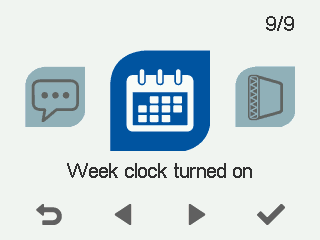
- Select OK.

The week clock’s calendar view opens:
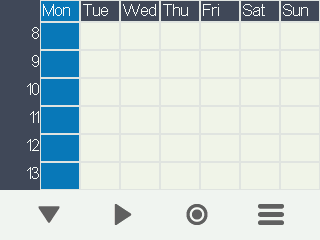
- Select Edit the week clock:
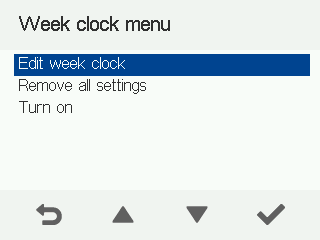
- Select OK.
- Select Right arrow to set the date.
- Select Down arrow to set the time.
- Use the Select button to select the ventilation mode to be activated at a certain hour. Use the Select button to browse the mode icons. The icons are:
 — At Home mode
 — Away mode
 — Boost mode.
 — Custom mode.
 — Standby mode
- Follow the steps above to set other ventilation modes for the week clock. See also Example of setting a weekly program.
- When you are done selecting the ventilation modes, select Settings.
- Select OK to save the changes. Select Cancel to cancel the changes. Select Back to make more changes to the week clock.