
Updating the unit software (MyVallox Touch)
We recommend that the latest software version be always used. Check and download the latest version at https://cloud.vallox.com either before or immediately after setup.
The current software version of the ventilation unit is shown on the control panel display when the unit is connected to the mains or factory settings are restored. Alternatively, the current software version can be checked from the Unit information display under the Service menu.
Updating the MyVallox ventilation unit with the MyVallox Touch control panel:
You need a computer with an internet connection, a MicroSD card and, possibly, an adapter.
Format FAT32 (exFAT does not work)
Max. Size 32GB
No minimum size.
- Download the latest software version at https://cloud.vallox.com/.
- Transfer the update file HSWUPD.BIN that you have downloaded onto a MicroSD card.IMPORTANT:Do not change the file name!
- Unplug the ventilation unit from the mains or turn off the fuse.
- Disconnect the control panel from the outlet box and remove the grey mounting frame from the control panel. Do not unplug the control panel power cords.
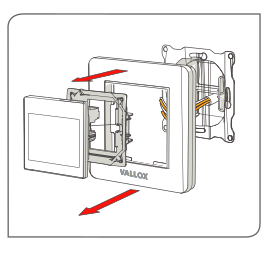
- Insert the MicroSD card into the control panel.
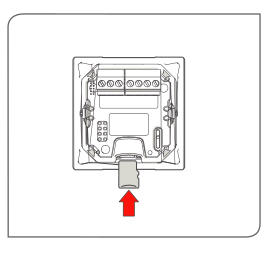
- Plug the unit in or switch the fuse back on.
- The control panel downloads the new software version from the MicroSD card to the control panel. A progress bar is shown on the display. This takes about one minute.
- When the download is complete, you can remove the MicroSD card and connect the control panel back to the outlet box. Do not unplug the control panel power cords.
- The control panel transfers the new software from the control panel to the motherboard of the ventilation unit. This may take several hours. The unit works normally but it is not recommended to use the control panel.
Once the update process is complete, the unit will restart. The unit’s software version is displayed on the control panel when the unit starts up and during use: Service menu→ Unit information.